

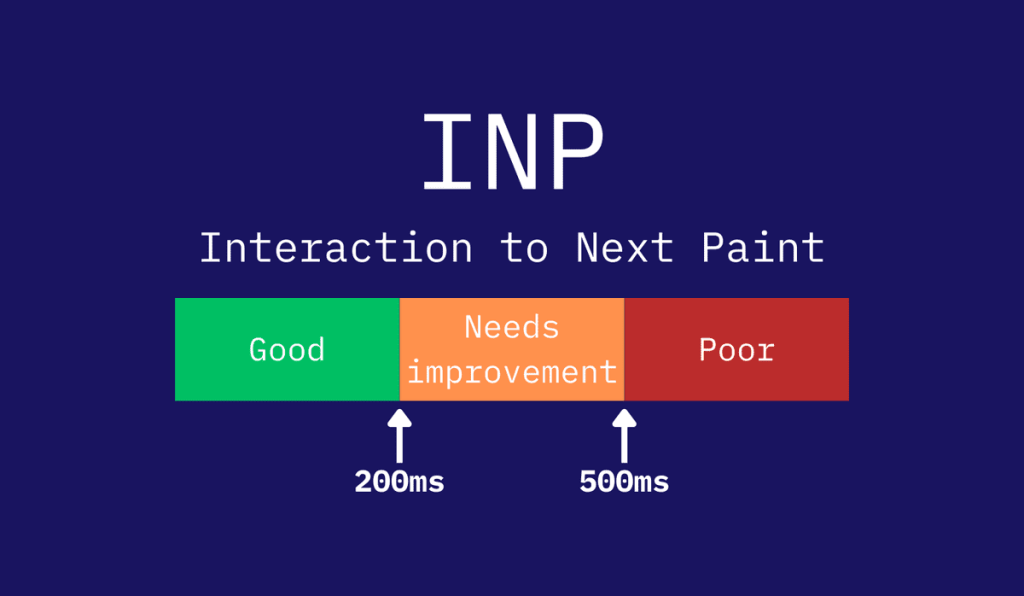
To improve the indicator INP (Interaction to Next Paint) in WordPress and WooCommerce, it is necessary to free up the main browser thread (Main Thread). To do this, break up long JavaScript tasks (Long Tasks > 50 ms), optimize WooCommerce cart scripts, configure debouncing event handlers, and simplify the DOM tree structure.
What is INP and why is it critical for WordPress and WooCommerce
Metrics Interaction to Next Paint (INP) is an official indicator Google Core Web Vitals. It evaluates the overall responsiveness of the interface throughout the user's entire session on the page. According to Google documentation on INP, the metric captures the longest delay in a site's response to user actions such as button clicks, taps on mobile devices, and entering characters into forms.
Google's standards define three quality ranges:
- Good (≤ 200 ms): The interface responds without noticeable delays.
- Needs improvement (201–500 ms): noticeable micro-freezes in the interface.
- Bad (> 500 ms): pronounced blocking of user actions.
In WooCommerce online stores, a delay in response when clicking the "Buy" button, opening the mini-cart, or filtering the catalog directly harms the user experience and can lead to purchase abandonment.
Anatomy of a delay: what makes up an INP
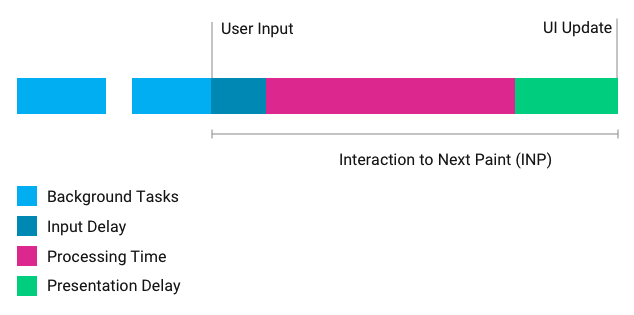
According to the manual web.dev with INP optimization, the interaction delay consists of three consecutive components:
- Input Delay: the time from the user's physical action (click, tap) to the moment the browser can start the event handler. If the Main Thread is busy executing background JS, the click is put into a waiting queue.
- Processing Time: duration of execution of JavaScript code tied to an event (for example, order recalculation or form validation).
- Presentation Delay: the time it takes for the browser to recalculate styles (Recalculate Style), layout (Layout) and paint the frame (Paint/Composite).
Diagnostics: How to Find Long Tasks in WordPress
According to specification MDN Long Tasks API, any task in the browser's main thread lasting more than 50 milliseconds is considered Long Task and blocks the event queue.
Step-by-step algorithm for identifying problems in Chrome DevTools:
- Open the landing page (product card or catalog) in incognito mode.
- Open DevTools (F12) and go to the tab Performance.
- Enable CPU throttling (CPU: 4x or 6x slowdown) to emulate the power of an average smartphone.
- Click Record, interact (for example, clicking the "Add to Cart" button or opening filters) and stop recording.
- In the section Interactions view the delay details (Input Delay, Processing, Presentation Delay), and in the track Main Find the red triangles of long-running tasks.
Diagnostic decision-making matrix
| Symptom in DevTools | Probable cause | Engineering solution |
|---|---|---|
| Input Delay > 50 ms | The stream is blocked by heavy scripts during loading (sliders, chats, pixels). | Add defer/async, delay the initialization of third-party widgets until the first interaction. |
| Processing Time > 100 ms | Heavy callback functions (event listeners), long synchronous loops, AJAX WooCommerce. | Debouncing handlers, breaking code through scheduler.yield() or setTimeout. |
| Presentation Delay > 100 ms | Excessive DOM depth (> 1500 nodes) due to visual builders, complex CSS rules. | Simplifying the DOM tree in Elementor/constructors, using content-visibility: auto. |
A step-by-step plan for optimizing INP in WordPress and WooCommerce
Step 1. Optimizing and working with cart-fragments in WooCommerce
By default, the script wc-cart-fragments.js sends an AJAX request wc-ajax=get_refreshed_fragments to update the contents of the mini-cart on each page. This creates a load on PHP and blocks browser resources while the page loads.
If a mini-cart is not needed on blog pages or static pages, script calls can be safely deactivated:
add_action('wp_enqueue_scripts', function() {
    if (function_exists('is_woocommerce') && !is_woocommerce() && !is_cart() && !is_checkout()) {
        wp_dequeue_script('wc-cart-fragments');
    }
}, 99);
Importantly: Complete shutdown
wc-cart-fragmentson catalog or product pages without configuring alternative refresh via client-side JavaScript (LocalStorage) may disrupt correct updating of the cart counter in custom themes. Before disabling, check the operation of the mini-cart in incognito mode.
Step 2. Break up Long Tasks and return control to the browser
When a function performs massive calculations on a click, the browser cannot render the element's state change (e.g., the state of a button being pressed). Use asynchronous pauses with scheduler.yield() or moving to microtasks:
async function handleProductFilterClick(event) { showVisualFeedback(event.target); // Immediate UI feedback // Return control to the browser to render the frame if ('scheduler' in window && 'yield' in window.scheduler) { await window.scheduler.yield(); } else { await new Promise(resolve => setTimeout(resolve, 0)); } performHeavyFilterCalculation(); // Heavy calculations }Step 3. Debouncing and throttling event handlers
Live Search Events (input), window resizing (resize) or catalog scroll (scroll) can fire dozens of times per second, overloading the thread. Use debounce to trigger processing only after a pause in the interaction:
function debounce(func, delay = 150) {
    let timeoutId;
    return function(...args) {
        clearTimeout(timeoutId);
        timeoutId = setTimeout(() => func.apply(this, args), delay);
    };
}

const liveSearchInput = document.querySelector('#ajax-product-search');
if (liveSearchInput) {
    liveSearchInput.addEventListener('input', debounce((e) => {
        fetchSearchResults(e.target.value);
    }, 200));
}
Step 4. Reducing the size of the DOM tree and rendering
High score Presentation Delay often occurs due to visual page builders (Elementor, Divi) that create an excessive number of wrappers <div>. When a click causes a DOM change, the browser is forced to recalculate the position of thousands of elements.
- Enable the option Optimized DOM Output and Flexbox/Grid containers in Elementor to reduce the number of nested containers.
- Apply CSS property
content-visibility: auto;for long product catalogs, so that blocks outside the screen are rendered only when scrolling closer. - Avoid generic and overly complex CSS selectors (e.g.,
.catalog * div:nth-child(2) span), which slow down the Recalculate Style phase.
Step 5. Isolating heavy third-party scripts
Online chats, callback widgets, and marketing pixels often run background timers that intercept the Main Thread when a user tries to interact with the site.
- Load marketing scripts via Google Tag Manager with a trigger on the first interaction event (Scroll or Mouse Movement), not on page launch.
- Use a static button stub (facade) for online chat that loads the heavy bundle of widget scripts only after a real user click.
INP indicator control checklist
- [ ] The INP indicator on key templates (home, catalog, product card, checkout) does not exceed 200 ms on mobile devices.
- [ ] All third-party analytics scripts have attributes
deferor are loaded asynchronously. - [ ] Script
cart-fragments.jsoptimized or disabled on pages where the mini-cart is missing. - [ ] Live search and filter handlers use
debounce. - [ ] The total number of DOM elements on the catalog page does not exceed 1400–1500 nodes.
Conclusion
Optimizing INP in WordPress and WooCommerce requires engineering analysis of JavaScript behavior and page rendering structure. Unlike load metrics, where it is enough to install a caching plugin, optimizing interface responsiveness is achieved by cleaning up the main thread and correctly prioritizing code execution.
If your online store or corporate project needs a comprehensive website optimization and eliminate Core Web Vitals delays, the VORONOV Solutions team will conduct a detailed code audit, configure the scripts, and help achieve high interface speed.
 English
  Ukrainian